

Your profile
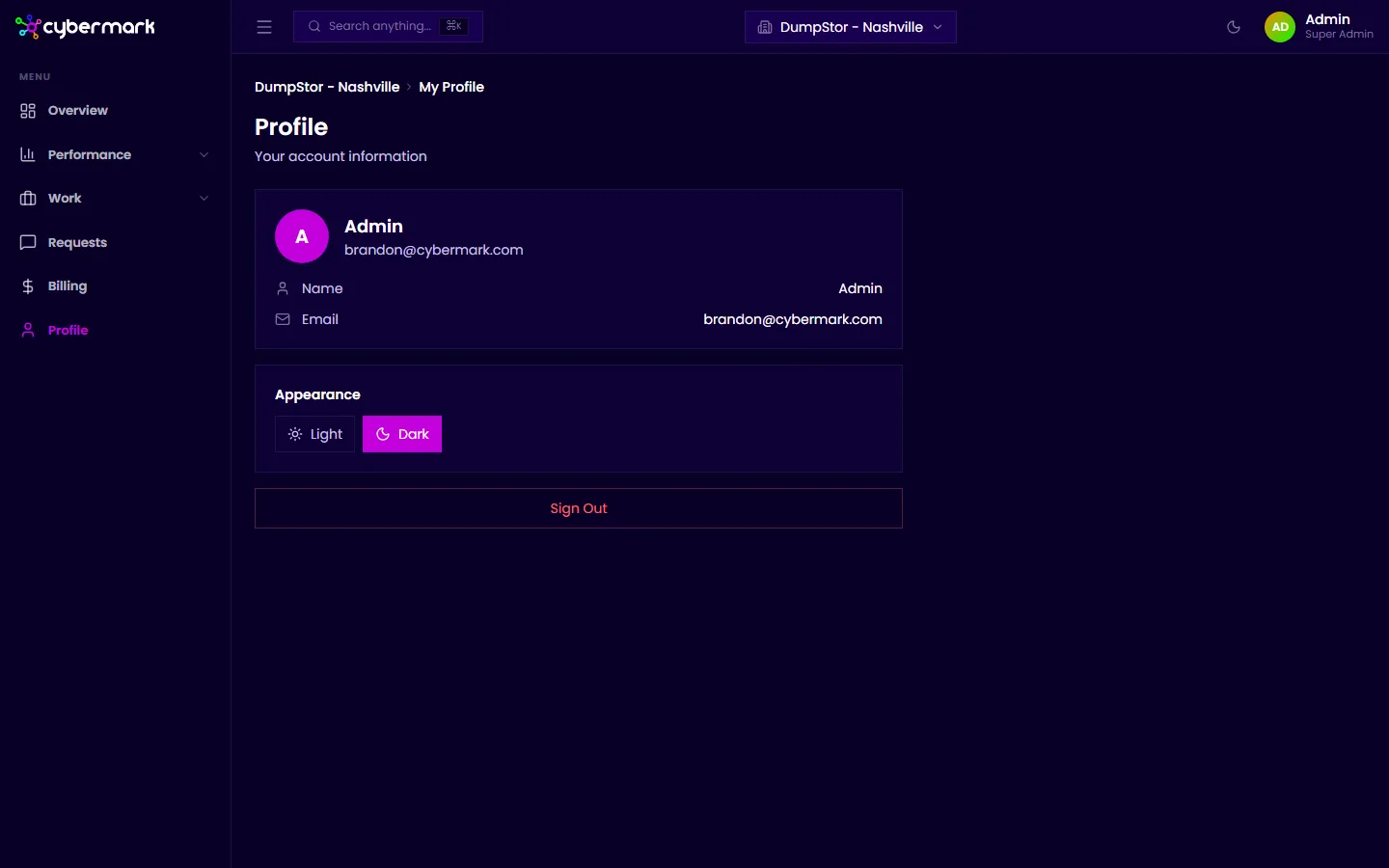
The Profile page lets you update your personal information and change your display theme.
When you’d use this
Section titled “When you’d use this”Visit your profile when you need to update your name or email address, or when you want to switch between light and dark mode.
Getting there
Section titled “Getting there”Click Profile in the sidebar, or go to app.cybermark.com/client/profile.
What you can update
Section titled “What you can update”- Name — Your display name within CyberMark.
- Email — The email address associated with your account.
After making changes, click Save (if present) or the changes are applied automatically.
Appearance
Section titled “Appearance”Use the Appearance selector to choose between Light and Dark mode. The preference is saved to your account and applies the next time you load the app.
Signing out
Section titled “Signing out”Click Sign Out at the bottom of the Profile page to end your session.